
WordPress is the most widely used website platform. If you use it too and have decided to grow your team (hiring an employee or starting to work with a virtual assistant) and delegate the website work onward, you need to give that person access to the site’s “back room”. seda and have decided to grow your team (hiring an employee or working with a virtuaalassistendiga) and to delegate the website work, you need to give that person access to the site’s admin area.
Why is it needed?
It frees very valuable time from your day. How many hours does adding a blog post or a new page take you? Couldn’t someone else do it for you? How many hours does adding a blog post or a new page take you? Couldn’t someone else do it for you?
The right answer is: yes, they could. And not only could, they should. As the leader of the company you surely have other things you must do personally.
So how do you delegate adding content to the website?
- Create an instruction for how you want content added to the WordPress site (if needed, you can have the virtual assistants write the instruction, giving them enough input) virtuaalassistentidel, andes neile selleks sisendina piisavalt infot)
- Add a new user to your WordPress environment
WordPressi kasutaja lisamine:
1.Logi sisse enda kodulehele:
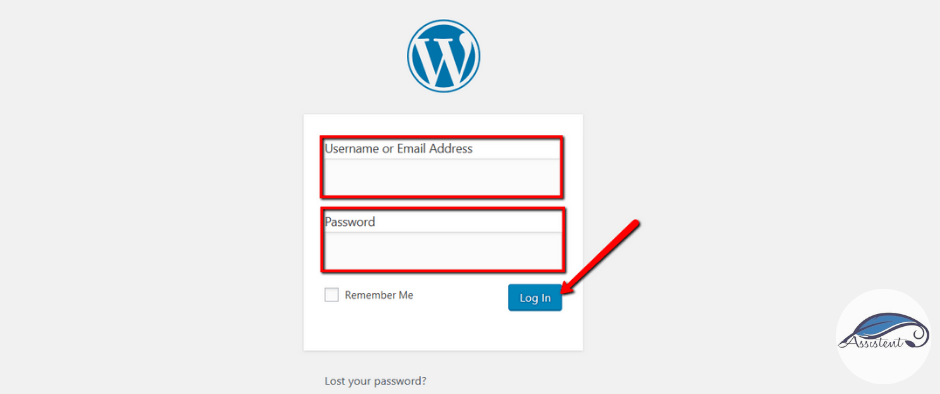
2. Go to the “Users” section in the left menu:Kasutajad“:
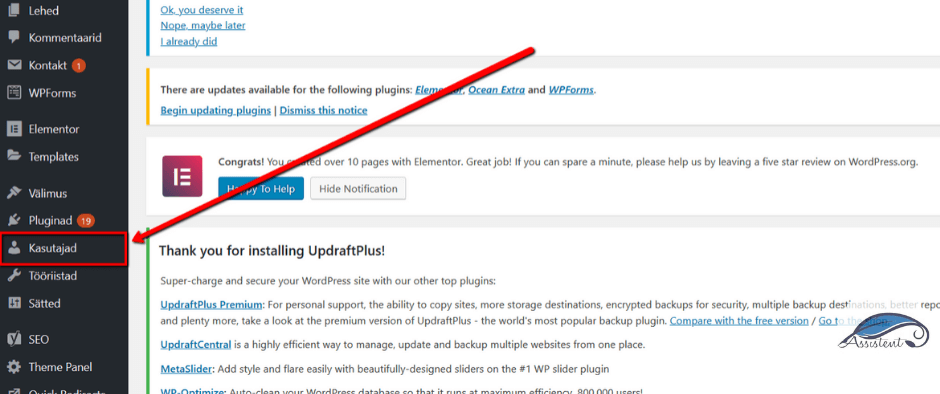
3. Lisa uus kasutaja vajutades nupule:

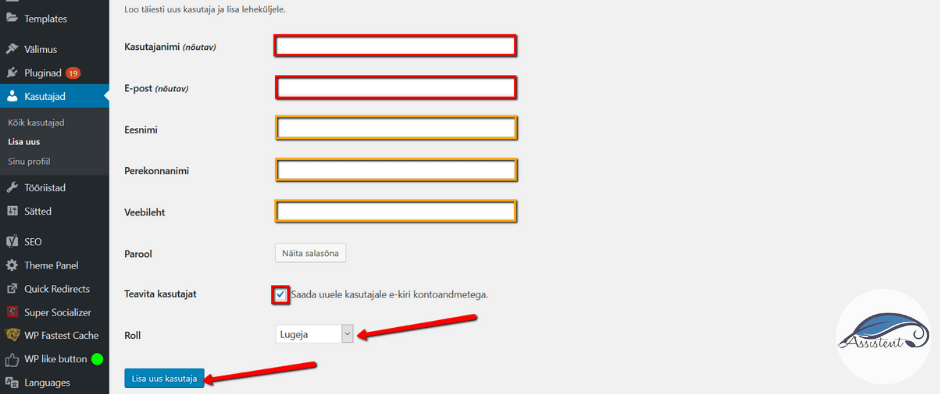
4. Enter the user’s details (at least the required fields: username and email), tick the box, and click “Add New User” to save: kasutajanimi ja e-post), lisa linnuke ja salvestamiseks vajuta “Lisa uus kasutaja“:
WordPressis on erinevad rollid (vali sobiv!)
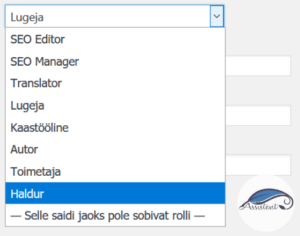
Subscriber : the user with the smallest rights in WordPress. They get access to the dashboard and can update their profile and change their password. They also get access to private content, which is useful if you need readers to register before doing anything on your site.
Contributor : sometimes called a co-author, a person who can write, edit and save their own posts. They can read unapproved comments but cannot approve or delete them. They cannot publish their own posts without help, and cannot upload attachments.
Author : a person who, unlike contributors, can publish or delete their own posts at will. They can add tags to their posts, but cannot create new categories; they can only choose among the categories created by the administrator.
Editor : a person who can publish and manage the posts of all users, including their own. The editor has full control over all content activity: they can write, publish, edit and delete other users’ posts and moderate comments.
Administrator : a person with access to all the site’s administration features. The administrator can manage content, install new plugins, change the theme, add new users and so on.
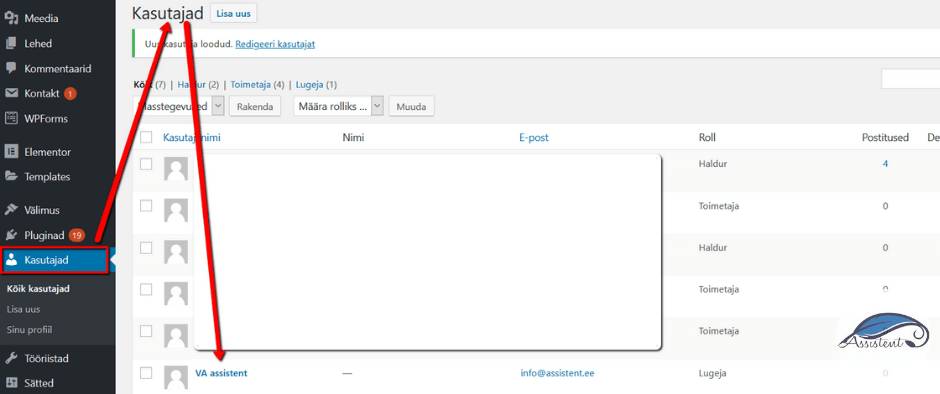
How do you edit users in WordPress?
If needed, log in to WordPress again and choose “Users” from the menu “Muuda”:
 Nowsaad muuta andmeid ja infot, mida soovid:
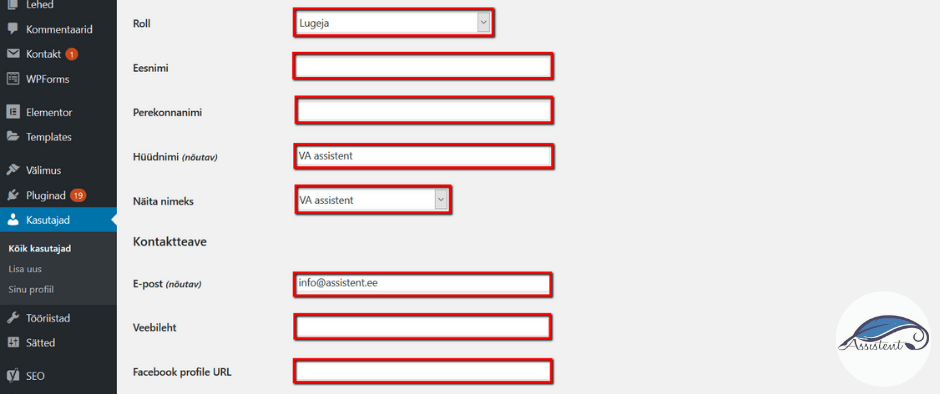
In the same view you can also set the user a new password:
1. Scroll down a little, find “New Password” and click “Generate Password”:

2. WordPress pakub ise kohe turvalisi paroole, but you can also change them:
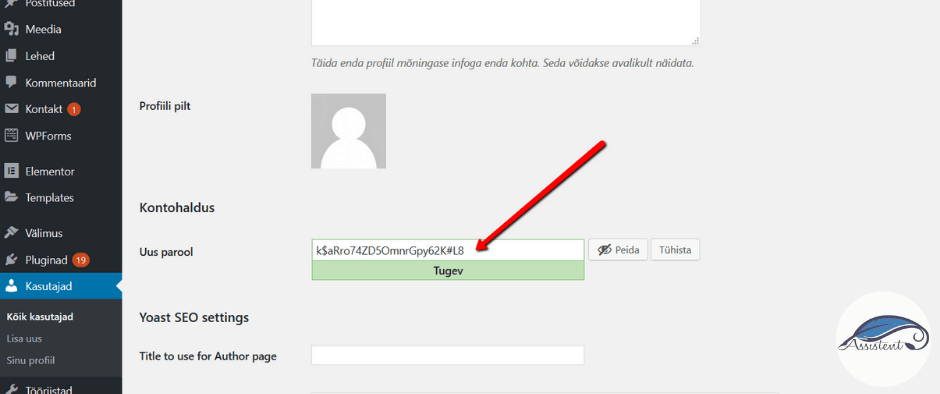
3. To save the changes, scroll further down and click “Update User”:Uuenda kasutajat”:

How do you delete a user?
From time to time users need removing too, whether it is an employee who left or a partner’s account added during a temporary collaboration…

2. You are then taken to confirm the deletion. Confirm it:
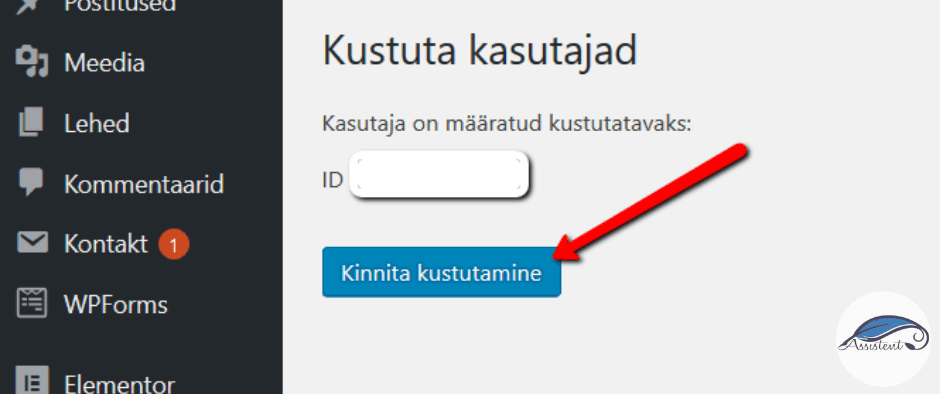
And that is it! You will no longer see that user in the Users view.
If this guide was useful to you, click “Like”, and if it could interest your friends as well, click “Share”.
If you need a guide on another topic, let us know! Thank you for your feedback!