
If you want to leave your company’s accounting tasks to your accountant, you need to grant the accountant access rights in the Estonian e-Tax Board (e-MTA). This guide gives you an overview of how it works.
Granting access rights samm-sammult:
1.https://www.emta.ee/ once on the page, click the button at the top right: Sisenen e-MTAsse. Then choose a suitable login method:

2. Next, a page opens where you choose e-MTA keskkonda ja vajutada Sisenen: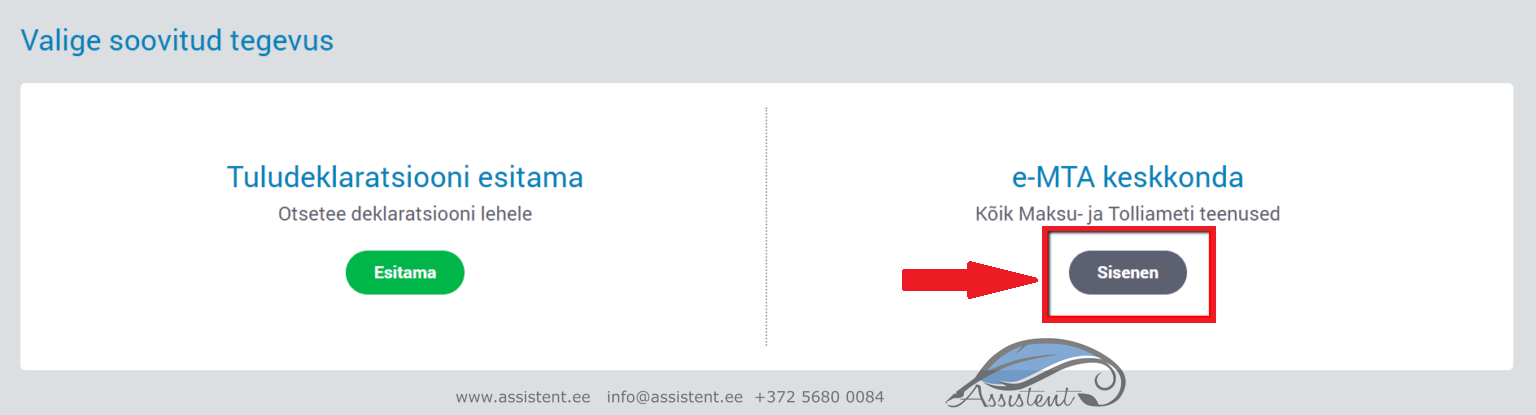
3. Then, under Minuga seotud juriidiliste isikute , find your company’s name and click on it. If you cannot find your company in the list, contact the Tax and Customs Board:
4. Leia vasakust tulbast Seaded ; clicking it opens a submenu. Choose Pääsuõigused (access rights) and then Esindajate pääsuõigused (representatives’ access rights):
5. Vajuta nuppu +Uus pääsuõigus (new access right):
6. Lisa oma raamatupidaja isikukood ning vajuta Otsi:
7. Valitud isikute the accountant’s name, ID code, username and status appear below. Tick the checkbox in front of their record (usually it is already ticked automatically). Click Edasi:
8. The accountant has now been added. Next, decide for how long you grant them the authorisations in your company’s e-Tax Board. If you have entrusted your everyday accounting to the accountant, there is no need to add an end date at first. If it is a one-off job, you may want to set an end date. It is also fine to leave it empty for now; the end date can be added later:
9. Dates added, let us move on to the content of the rights. Scroll down a little if needed. The accountant’s work in the e-Tax Board usually covers everything tax-related, so under Pääsuõiguste paketid (access rights packages) juures Valdkonna choose from the Valdkond (area) menu, and then click the green button Otsi:
10. Otsingutulemuste ilmudes pane linnuke Raamatupidaja Paketi and click Lisan:
11. The system asks for confirmation – “Do you want to grant these access rights to the selected persons?”. Vajuta nupule Lisan:

12. And granting your accountant rights in the e-Tax Board is done:
Ending access rights samm-sammult:
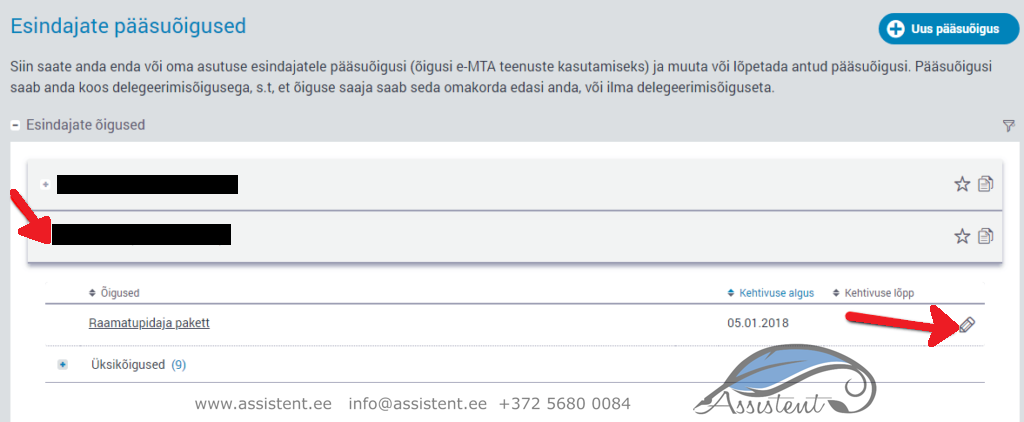
- To end an authorisation in the e-Tax Board, go once again to the representatives’ access rights section (see above). Click the plus sign in front of the accountant’s name and then the pencil icon at the end of the row that opens:
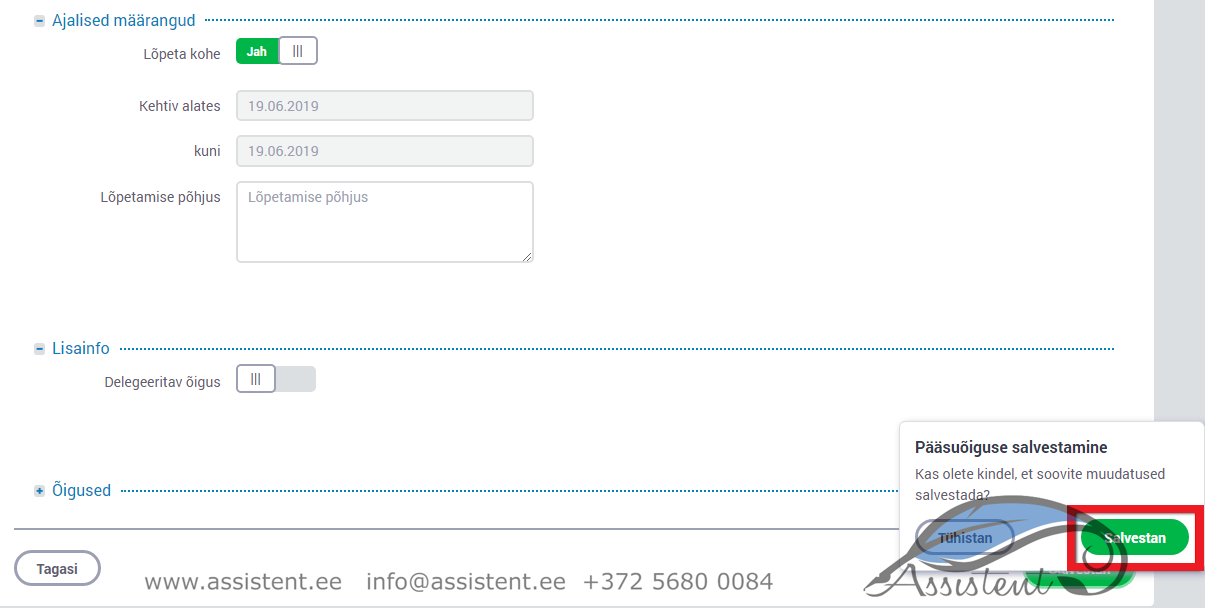
- There are two options:
- end the authorisations immediately
- or set another date

- Click the button at the bottom right
The system asks for confirmation – “Are you sure you want to save the changes?”. Vajuta nupule Salvestan:
- And the accountant’s authorisations are ended! To check, click the plus sign in front of the accountant’s name:

If this page could help your friends as well, click “Share”!